I didn’t take a second monitor seriously until I spent three months working off a 13-inch laptop screen alone. Every time I needed a spreadsheet open while writing an email, or Slack open while a document was open, I was alt-tabbing like it was my job. It wasn’t. I was burning minutes every hour shuffling windows around.
The day I plugged in an external monitor, that friction disappeared. A document on one screen, research or a video call on the other. No more resizing windows into thirds, no more losing track of a browser tab. If you’re still running a single screen at home, a second monitor is probably the cheapest productivity upgrade you can make.
Quick verdict: if you want the best all-around value, go with the Dell S2721Q. If your budget is tight and you just need extra screen real estate, the Acer SB220Q bi gets it done for under $70. If you want a big step up in color accuracy and screen size for creative or detail-heavy work, the LG 27UP850-W is worth the extra money.
What to look for in a monitor
Before getting into specific picks, here’s what actually matters when comparing monitors, since spec sheets throw out numbers that don’t all carry equal weight for remote work.
Resolution determines how much detail and screen space you get. 1080p (1920×1080) is fine for email and browsing, but text looks soft above 24 inches. 1440p (2560×1440) is the sweet spot for most home office work: sharp text, room for two windows side by side, still affordable. 4K (3840×2160) gives the most real estate and the crispest image, useful for design or photo editing, though you’ll want a larger screen to avoid scaling issues.
Refresh rate matters less for office work and more for anything involving motion. 60Hz is fine for spreadsheets and calls. If you also game or edit video, 75Hz or 144Hz feels noticeably smoother.
Panel type affects color and viewing angles. IPS is the standard for office and creative work because it holds color accurately from almost any angle. VA offers deeper contrast but can shift color off-center. TN is cheap and fast but washes out badly at an angle, so avoid it unless the budget is very tight.
Screen size is personal, but 24 inches is the practical minimum for a second monitor, 27 inches is the most common sweet spot, and anything above 32 inches eats a lot of desk space unless mounted on an arm.
Ports get overlooked until you’re stuck. Look for HDMI plus DisplayPort at minimum. USB-C with power delivery is a real convenience, letting you charge your laptop and send video through a single cable. A built-in USB hub is a nice bonus.
Acer SB220Q bi
Price: $69.99
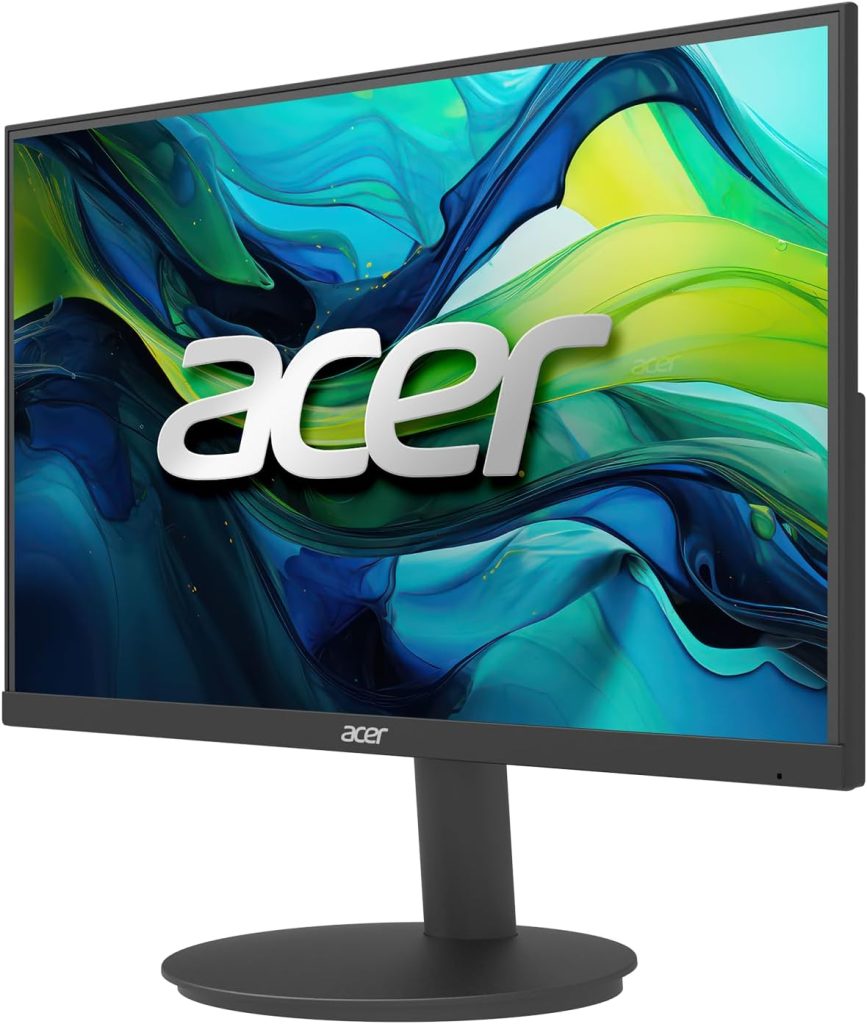
This is the monitor I recommend to anyone who just needs a second screen without overthinking it. It’s a 21.5-inch 1080p IPS panel, thin bezels, light enough to move between rooms. I’ve used this as a side monitor for a laptop dock, and it does exactly what’s needed: a second window for email, chat, or reference material while the main screen handles focused work.
The image quality beats the price. Being IPS rather than TN, colors stay consistent off-center, which matters if the second monitor sits to the side of your desk. It won’t wow you with brightness, and the stand is basic tilt-only, so a riser helps. Ports are HDMI and VGA only, no USB-C, so laptop users may need an adapter.
Pros
– Genuinely sharp IPS panel for the price
– Extremely light and easy to reposition or wall-mount
– Thin bezels make a two-monitor setup look clean
– Low input lag, fine for video calls and general use
Cons
– No height-adjustable stand
– No USB-C, only HDMI and VGA
– 1080p resolution feels limited on anything over 22 inches
– Speakers are weak, plan to use headphones or external speakers
Best for: remote workers on a tight budget who need a functional second screen without any bells and whistles.
Dell SE2422H
Price: $119.99
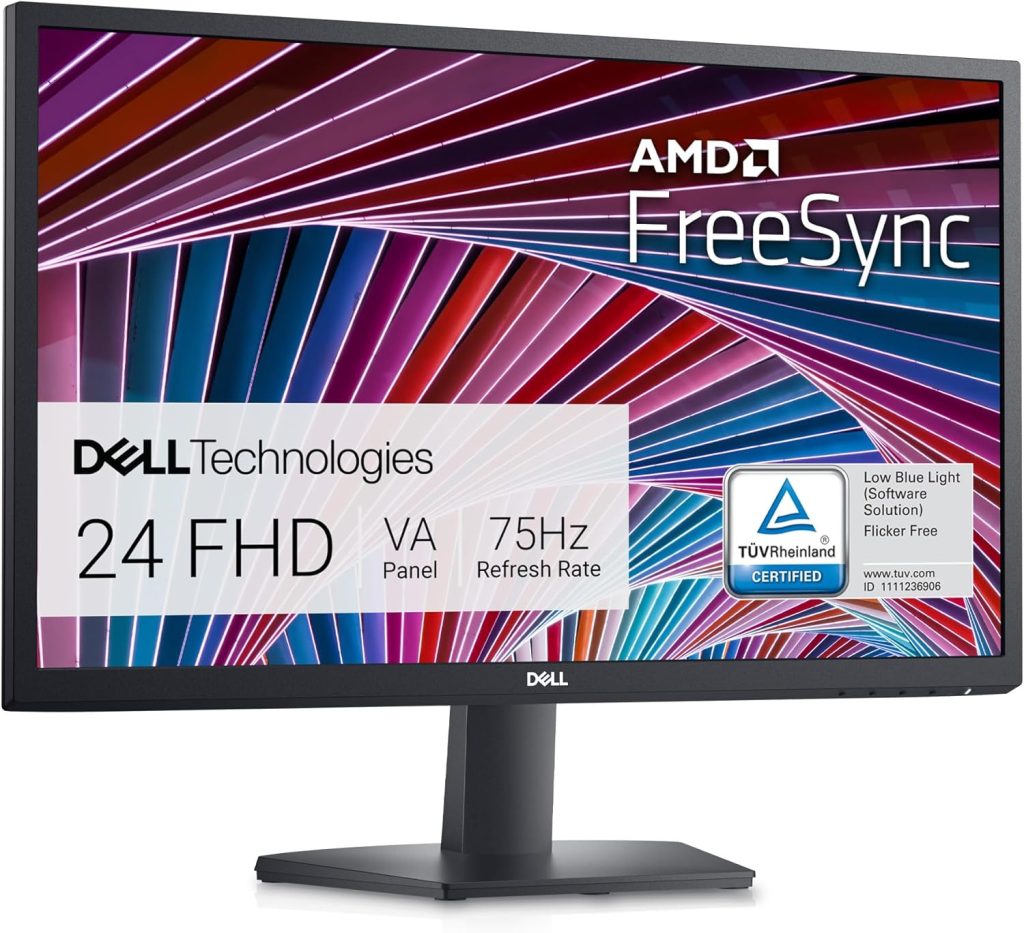
Dell’s SE2422H is a step above entry-level without spending much more. It’s a 23.8-inch 1080p IPS display with a better stand than most monitors in this bracket, tilt that feels solid, and a matte anti-glare coating that handles bright rooms well.
What surprised me day-to-day was how consistent the color reproduction is for video calls. Skin tones look natural, nothing washed out or warm, which matters staring at your own face on Zoom for six hours a week. It runs cool and quiet, no fan noise or coil whine. The limitation shows up if you’re doing detail-heavy work: at 1080p on a 24-inch screen text is clear but you’re not getting fine pixel density, and ports are HDMI and VGA only, no USB-C or built-in hub.
Pros
– Comfortable IPS color accuracy for calls and everyday tasks
– Anti-glare coating handles bright rooms well
– Quiet operation, no fan or coil noise
– Dell’s build quality and warranty support are dependable
Cons
– Still 1080p, no 1440p option at this size
– No USB-C or DisplayPort, HDMI and VGA only
– No height adjustment on the stand
– No built-in speakers
Best for: someone upgrading from a laptop-only setup who wants a dependable everyday monitor without paying for resolution they may not use.
ASUS ProArt PA278QV
Price: $229.99
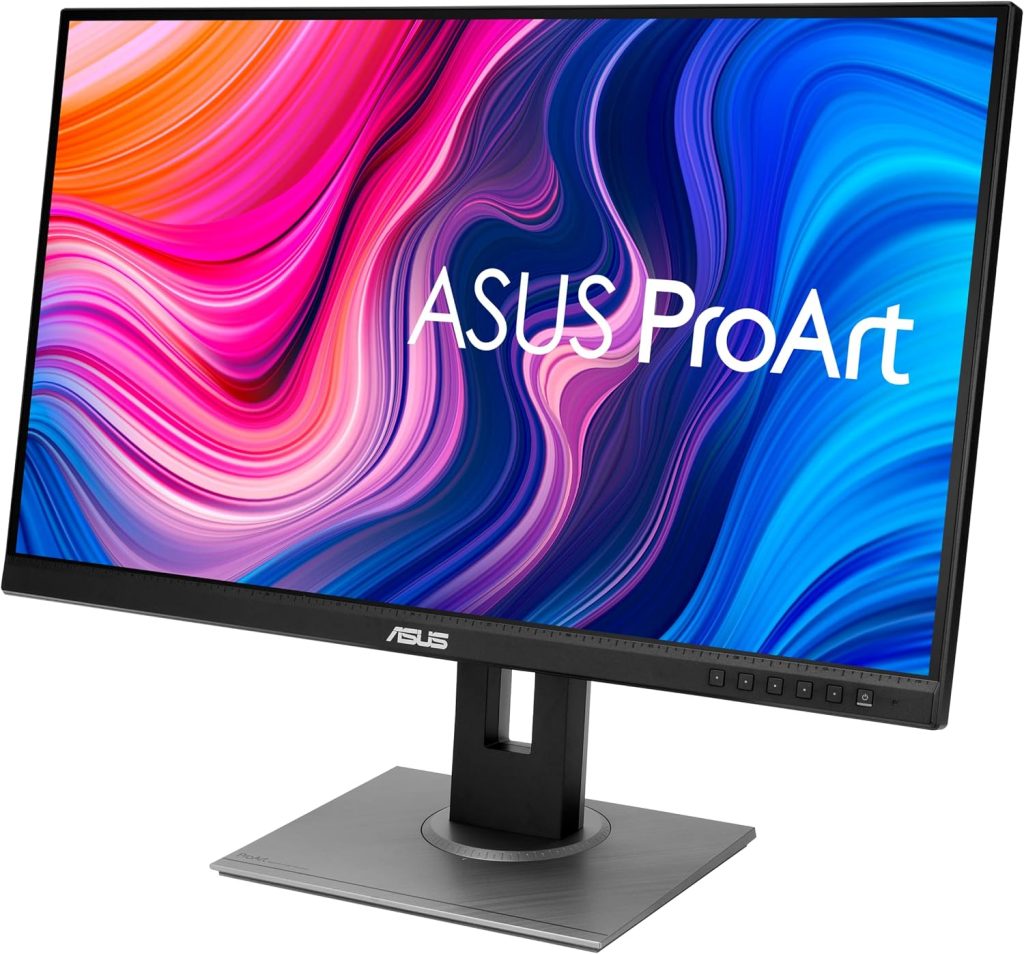
If your work leans toward design, photo editing, or anything where color accuracy matters more than raw pixel count, this is the monitor I’d steer you toward instead of a straight 4K panel. The PA278QV is a 27-inch 1440p IPS display, factory-calibrated with Delta E under 2, a tighter tolerance than general-purpose office monitors in this range.
The ergonomic stand adjusts for height, tilt, swivel, and pivot, so you can rotate it into portrait mode for reading long documents or reviewing code, something none of the cheaper monitors here offer. The 75Hz refresh rate is a small but noticeable improvement over 60Hz for scrolling and window dragging. The tradeoff is resolution: at 1440p instead of 4K you’re not getting quite the pixel density of the Dell S2721Q, though 1440p at 27 inches still looks sharp. Ports include HDMI, DisplayPort, and a USB hub, but no USB-C.
Pros
– Factory color calibration, great out of the box for design and photo work
– Fully adjustable stand with portrait mode
– 75Hz refresh rate feels smoother for everyday use
– Built-in USB hub is genuinely convenient
Cons
– 1440p rather than 4K, less pixel density than similarly priced options
– No USB-C input
– Slightly higher price than comparable 1440p monitors without calibration
– Speakers are basic, expect to use external audio
Best for: freelancers and remote workers doing design, photo, or video work who need accurate color and a flexible stand.
Dell S2721Q
Price: $369.99
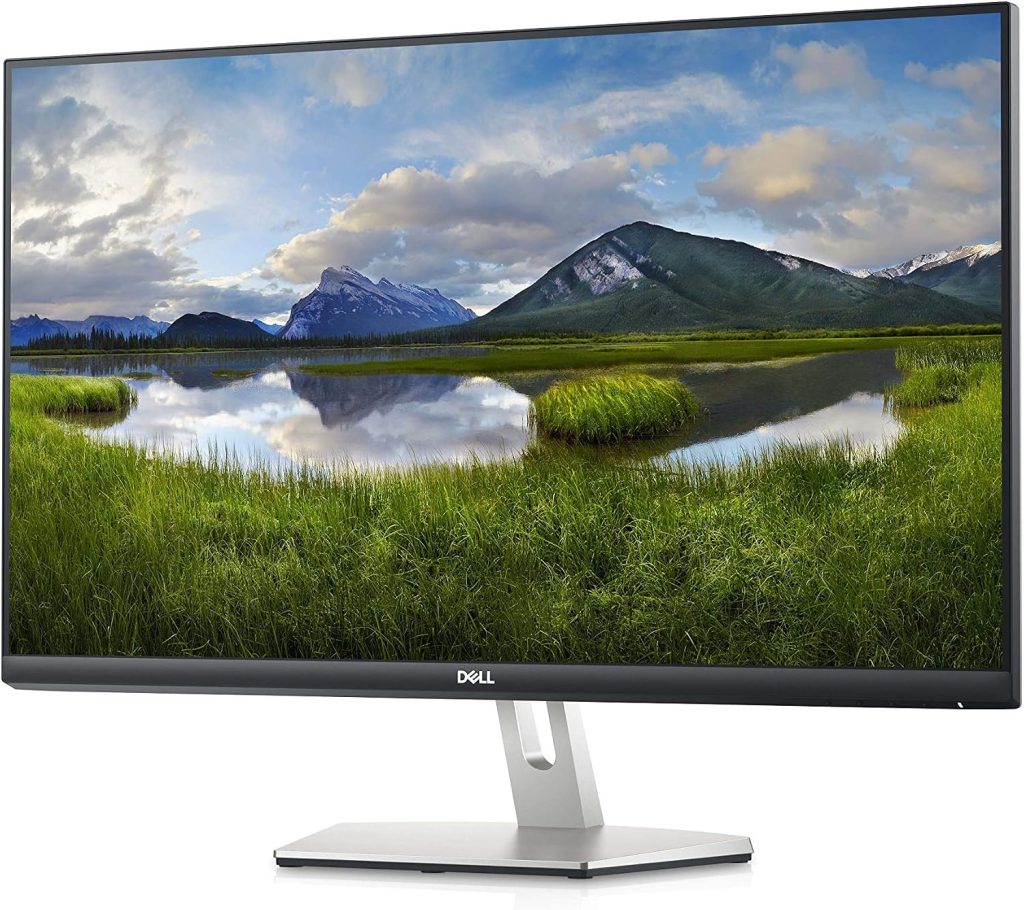
This is the one I’d tell most people to just buy and stop shopping. The S2721Q is a 27-inch 4K IPS monitor, hitting the balance between price, resolution, and features better than almost anything else in this range. I’ve used this as my primary secondary display for over a year, and the pixel density at 4K on 27 inches makes text look genuinely crisp, not just “fine.”
Connectivity is where it earns its price: HDMI, DisplayPort, headphone jack, plus a sturdy tilt stand. It supports HDR content too, a nice bonus for video during breaks. Color accuracy out of the box is good enough for casual photo work, though a dedicated design monitor would edge it out for color-critical tasks. One thing to know going in: at 4K, Windows scaling can be inconsistent across apps, so expect to spend a few minutes adjusting display settings on first setup.
Pros
– 4K resolution on 27 inches gives excellent text and image sharpness
– Strong port selection: HDMI, DisplayPort, headphone jack
– Solid build quality, stand doesn’t wobble
– HDR support for casual video watching
Cons
– No USB-C input
– Windows display scaling needs manual tweaking at first
– Not bright enough for full HDR content, more of a “compatible” feature
– Height adjustment is limited compared to pricier stands
Best for: remote workers who want a genuine 4K upgrade without paying for a professional color-grading monitor.
LG 27UP850-W
Price: $374.99
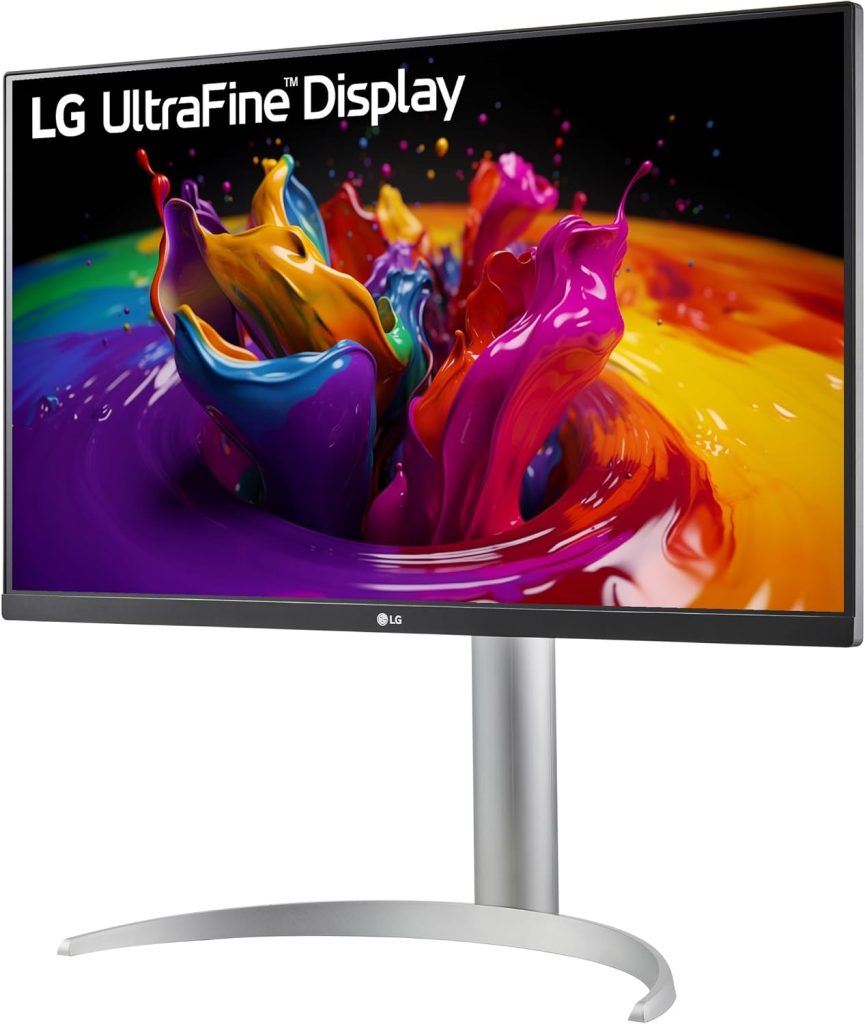
This is the monitor I’d recommend if you want to future-proof your setup and don’t mind spending more. The 27UP850-W is a 27-inch 4K IPS display with USB-C connectivity delivering up to 96W of power, meaning if your laptop charges via USB-C, you can connect video, data, and power through a single cable. That alone clears a small pile of cables off your desk.
Beyond the USB-C convenience, the image quality is a genuine step up. It supports HDR10 and covers 99% of the sRGB color space, a legitimate option for photo and video editing, not just office work. The height-adjustable stand tilts, swivels, and pivots into portrait mode, and the build feels sturdier than most monitors at this price. I’ve had this connected to a MacBook, and the single-cable setup genuinely changes how willing you are to unplug and move your laptop during the day. The price is the obvious catch: a real premium over the Dell S2721Q for USB-C power delivery and slightly better color coverage. Speakers are functional but nothing special, so plan on external audio.
Pros
– USB-C with 96W power delivery, single-cable setup for laptops
– 4K resolution with strong sRGB coverage and HDR10 support
– Fully adjustable stand including portrait mode
– Built-in USB hub with additional ports
Cons
– Noticeably more expensive than other 4K options on this list
– Speakers are mediocre
– HDR is more “compatible” than truly impactful given brightness limits
– Overkill if you don’t need USB-C power delivery
Best for: remote workers using a USB-C laptop who want to cut cable clutter and get strong color performance in one purchase.
Which one should you get
If you’re just testing whether a second monitor helps your workflow, start with the Acer SB220Q bi. At $69.99 you’re not out much if it turns out you don’t use it as often as expected, though most people do.
If you want a dependable everyday monitor a step up in build quality without spending much more, the Dell SE2422H at $119.99 gets you there.
If your work involves design, photography, or anything where color needs to be right, the ASUS ProArt PA278QV at $229.99 is worth the jump. The factory calibration alone saves you the hassle of profiling a monitor yourself.
If you want the best overall value at the top end and plan to live on this monitor for years, the Dell S2721Q at $369.99 is the one I keep recommending. The 4K resolution at 27 inches genuinely improves how much you can see and how sharp everything looks, without feeling like overkill for home office use.
And if you’re working off a laptop that charges over USB-C and you’re tired of managing separate cables, the LG 27UP850-W at $374.99 is worth the extra few dollars over the Dell. It’s the only monitor here that meaningfully reduces desk clutter as part of its core feature set.
Final thoughts
A second monitor is one of those upgrades that pays for itself in the first week. Once you get used to a document open next to your reference material, or your calendar next to your inbox, going back to a single screen feels like working with one hand tied behind your back. None of these five monitors are exotic or hard to find. They’re the kind of practical, well-reviewed picks that show up on desks in real home offices, not just marketing photos.
Pick based on your actual workflow rather than the biggest spec sheet. If you’re mostly doing email, spreadsheets, and video calls, you don’t need 4K and USB-C power delivery. If you’re editing photos or building decks with a lot of visual detail, spending more up front on accurate color and a flexible stand will save you frustration later. Either way, the jump from one screen to two is bigger than the price tag suggests.
Affiliate disclosure: This article contains affiliate links. If you click through and purchase, WorkRemote HQ may earn a commission at no extra cost to you. All opinions are based on honest research and assessment.