Best Webcam for Remote Work: Honest Picks That Won’t Let You Down on Camera
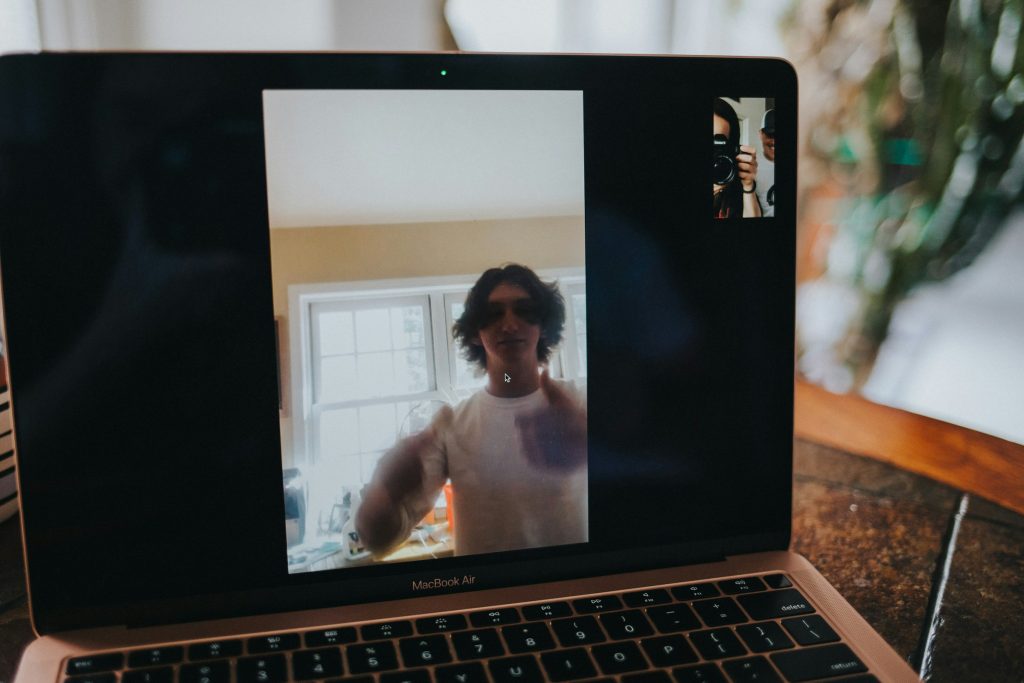
Your built-in laptop webcam is lying to your clients. It’s washing you out, pixelating your face in anything less than perfect light, and making you look like you’re calling in from a bunker. I’ve been there. A bad camera doesn’t just hurt your image. It signals that you’re not taking things seriously, even when you absolutely are.
The good news is you don’t need to spend a fortune to fix it. A decent external webcam will do more for your on-camera presence than a ring light, a fancy background, or any amount of camera-angle gymnastics. One upgrade and you’ll notice the difference on your very next call.
I’ve tested a handful of the most popular options for remote workers and freelancers over the past couple of years. Here’s what I’d actually recommend, based on real use, not spec sheets.
What to Look for in a Remote Work Webcam
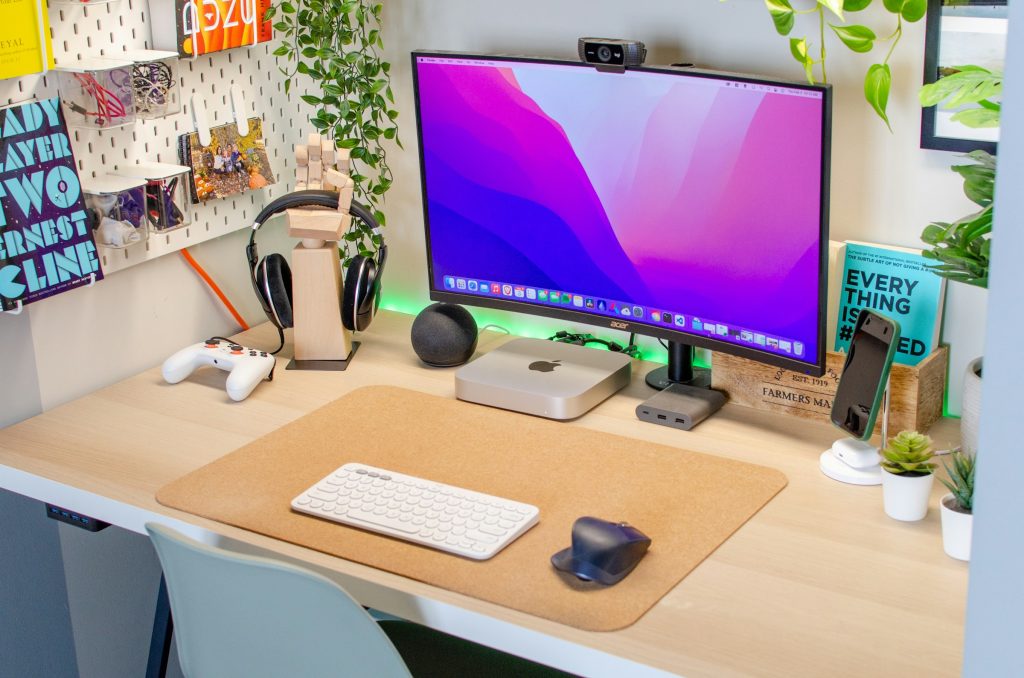
Before getting into specific picks, here’s what actually matters for video calls:
Resolution. 1080p is the sweet spot. 4K sounds great, but most video platforms cap their streams well below that anyway. Don’t overpay for resolution you won’t use.
Low-light performance. Most home offices are darker than you think. If your camera struggles in anything less than ideal light, you’ll look washed out or grainy half the time.
Autofocus. You move around. A camera that tracks you well keeps you sharp without any extra effort.
Field of view. Around 65 to 78 degrees is ideal for a single person at a desk. Anything wider and you’ll show off more of your messy room than you’d like.
Built-in mic quality. Not a replacement for a dedicated mic, but a decent built-in keeps things simple when you don’t want another piece of gear on your desk.
Plug-and-play setup. USB-A or USB-C, no drivers required. You want to open the box and be on a call in two minutes.
That’s really it. You don’t need AI features, 360-degree rotation, or a built-in ring light to look good on camera. Good optics and decent light sensitivity will carry you further than any gimmick.
The Best Webcams for Remote Work
1. Logitech C920x: The Reliable Budget Pick
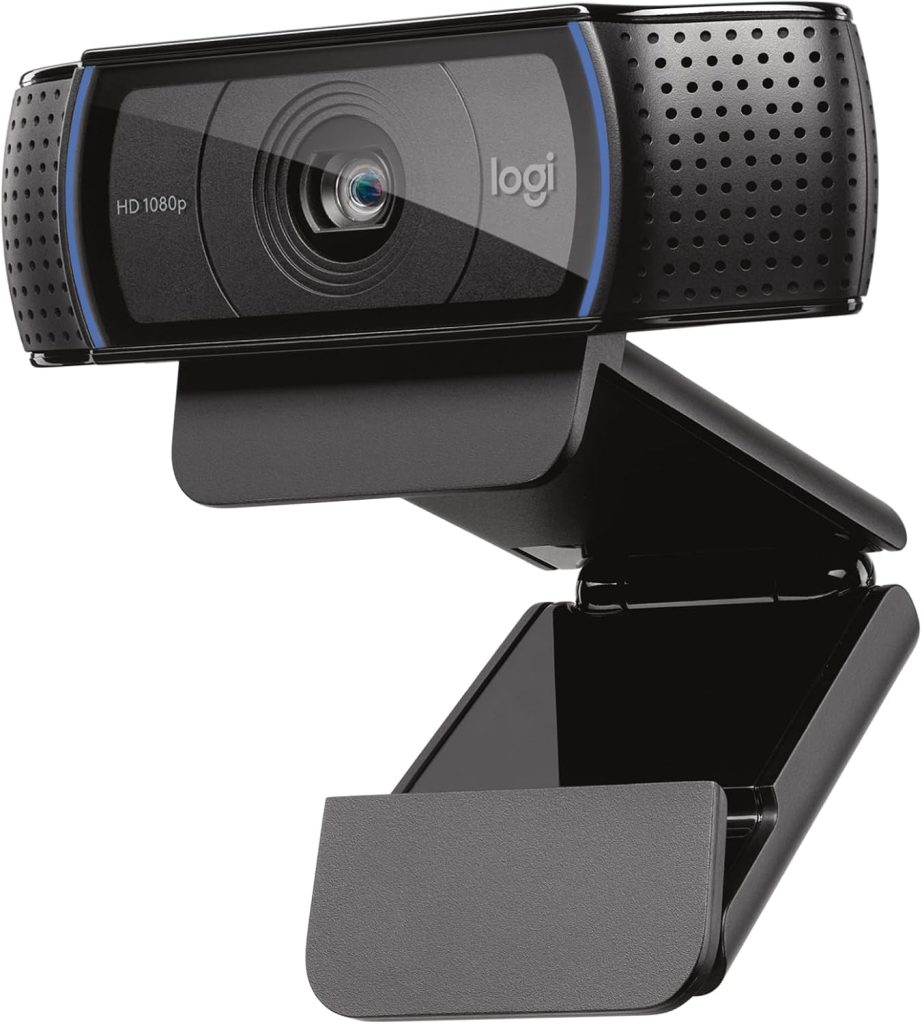
The C920x has been the default recommendation for remote workers for years, and it still earns that spot. It shoots in 1080p at 30fps, has a glass lens (not plastic, which matters for sharpness), and works immediately when you plug it in. No software needed, no fiddling around.
The autofocus is quick. The built-in dual mics are actually usable in a quiet room. And the image quality is sharp in well-lit conditions.
Where it struggles: low light. If your desk isn’t near a window and you don’t have decent ambient lighting, the image gets grainy fast. That’s the main trade-off at this price.
Pros:
- Excellent 1080p image quality in good light
- Glass lens for sharper image
- Dual stereo mics included
- Works on Windows and Mac right out of the box
- Trusted, well-supported product
Cons:
- Not great in low-light environments
- No 4K option
- Clips to monitor only, no tripod thread (though there’s a thread on the bottom of the clip)
Best for: Freelancers and remote workers with a reasonably well-lit workspace who want a reliable, no-nonsense camera without overthinking it.
Price: Around $70
2. AnkerWork C310: The Underrated Value Pick
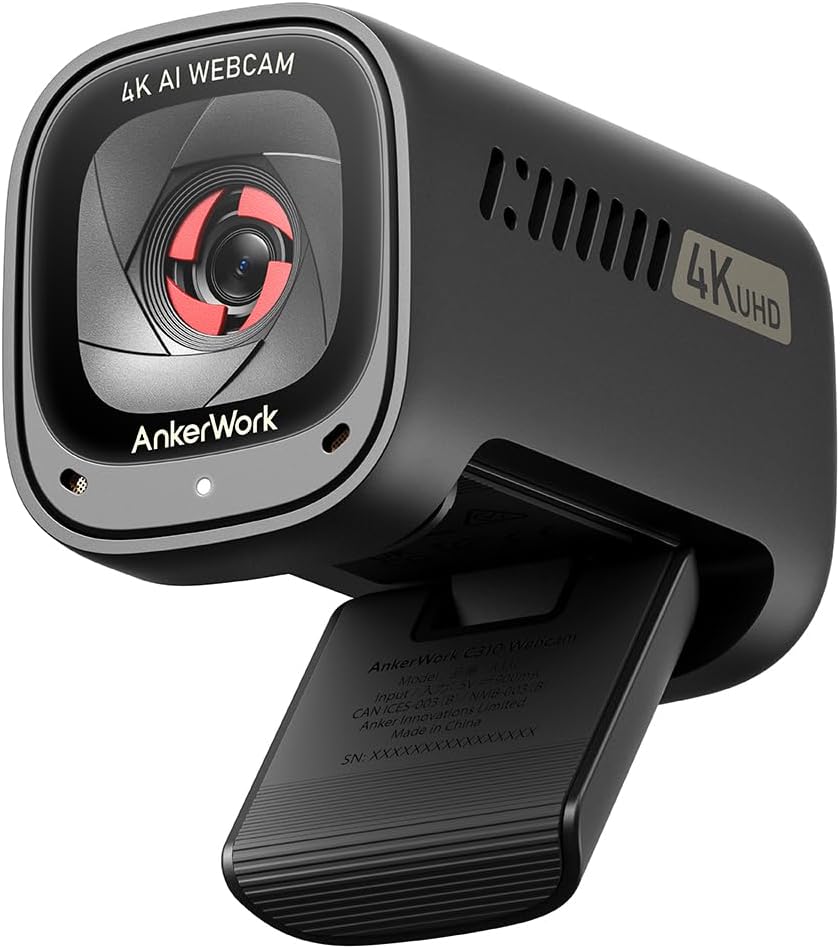
Most people sleep on this one. The AnkerWork C310 is priced around $99.99 and punches above that. It’s a 12-megapixel 4K webcam that also shoots 1080p at 60fps, with AI-powered autofocus, AI framing that keeps you centered as you move around your desk, and an AI noise-canceling mic that filters out keyboard clatter and background noise without you touching a setting.
The adjustable field of view is a nice touch. You can widen it to show more of your desk setup or narrow it for a tighter, more professional headshot framing. Setup is plug-and-play. The companion software is optional, not required.
One thing I really like: the physical privacy cover is built right in. No hunting for a sticker to slap over the lens. It just slides shut.
Pros:
- True 4K capture at 12 megapixels, with 1080p60 for smoother video calls
- AI framing keeps you centered without manual adjustment
- Built-in privacy shutter
- AI noise-canceling mic cuts background noise automatically
- Adjustable field of view for tighter or wider framing
Cons:
- Less brand recognition than Logitech (though the hardware performs well)
- Companion app is basic and not very polished
- 4K is nice on paper, but most video call platforms compress it down anyway
Best for: Remote workers who want AI-assisted framing and a sharper image than the C920x without jumping to premium pricing.
Price: Around $99.99
3. Logitech C922 Pro: The Step-Up for Frequent Callers
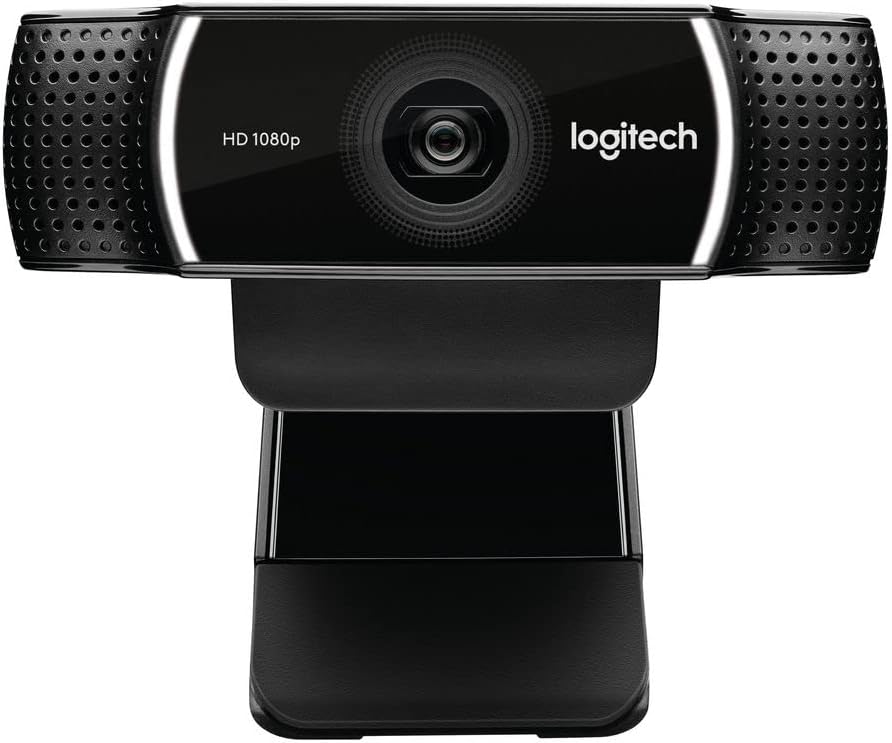
The C922 Pro is what you get when you want more than the C920x but aren’t ready to go full premium. It shoots 1080p at 30fps or 720p at 60fps, has a wider field of view (78 degrees), and adds a background replacement feature that works without a green screen, though that feature is hit or miss in practice.
The real upgrade here over the C920x is the light correction. Logitech’s RightLight 3 does a noticeably better job of balancing exposure in mixed lighting conditions. It won’t rescue a truly dark room, but it handles the “bright window behind me” problem much better than its cheaper sibling.
The dual omni-directional mics are clear and pick up less background noise than you’d expect. If you’re on calls for hours every day, the audio quality here makes a real difference over time.
Pros:
- Better light correction than the C920x
- Smooth 720p at 60fps option
- Wide 78-degree field of view
- Good dual-mic audio
- Works well with Zoom, Teams, and Google Meet
Cons:
- Background replacement feature is unreliable without a green screen
- Only marginal upgrade over the C920x for casual users
- No 4K
Best for: Remote workers who spend a lot of time on video calls and want better automatic exposure handling, especially in less-than-perfect lighting setups.
Price: Around $90
4. Razer Kiyo Pro: The Low-Light Specialist
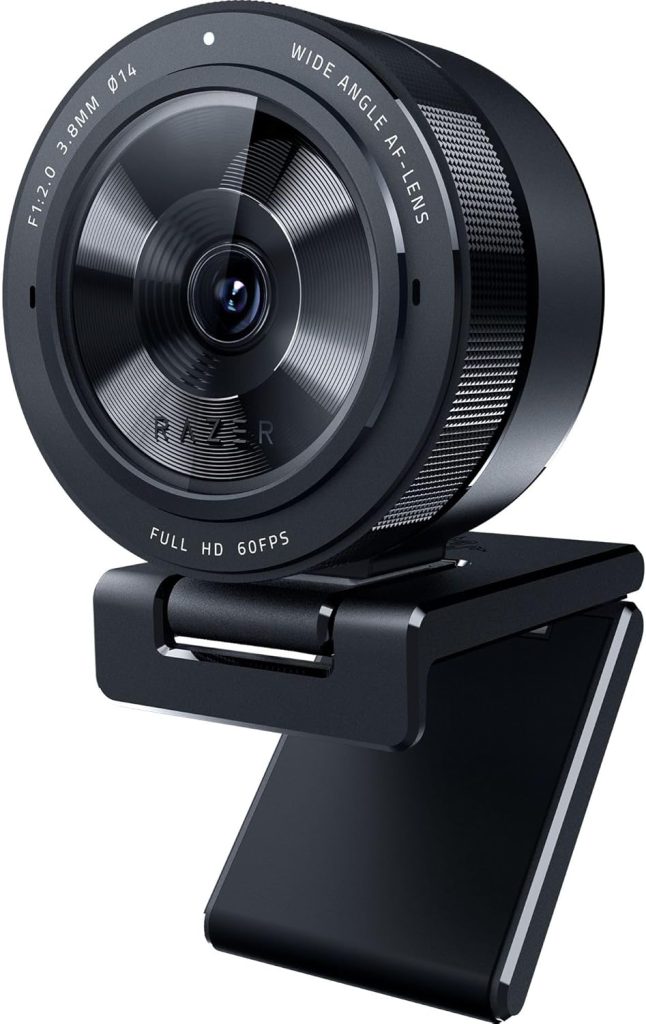
If your office is dim, this camera plays in a different league from the others. The Razer Kiyo Pro uses an adaptive light sensor instead of the standard fixed sensor most webcams use. That means it handles dark environments dramatically better than the competition. If your home office is dim, or if you often call from a room without great natural light, this camera is worth serious consideration.
It shoots 1080p at 60fps with a wide dynamic range that keeps your face looking natural even when there’s a bright window or lamp behind you. The uncompressed video option is a bonus if you’re also doing any video content creation on the side.
The HDR mode is the best thing about it. It layers multiple exposures to balance bright and dark areas in the same frame. That’s unusual at this price point.
One catch: the autofocus can be a bit slower than Logitech’s offerings. It usually gets there, but there’s occasionally a second or two of hunting when you first appear on screen.
Pros:
- Excellent low-light performance thanks to adaptive sensor
- 1080p at 60fps
- Wide dynamic range and HDR mode
- USB-C connection
- Works without Razer’s software (Synapse optional)
Cons:
- Autofocus is slower to lock compared to Logitech models
- Razer’s software (Synapse) is bloated if you choose to install it
- Design is more gaming-oriented, which isn’t for everyone
- Price has dropped but still slightly higher than comparable options
Best for: Anyone working in a dim room or dealing with harsh backlighting who wants their face to actually look good on camera without rearranging their whole office.
Price: Around $190
5. Logitech Brio 4K: The Premium Pick
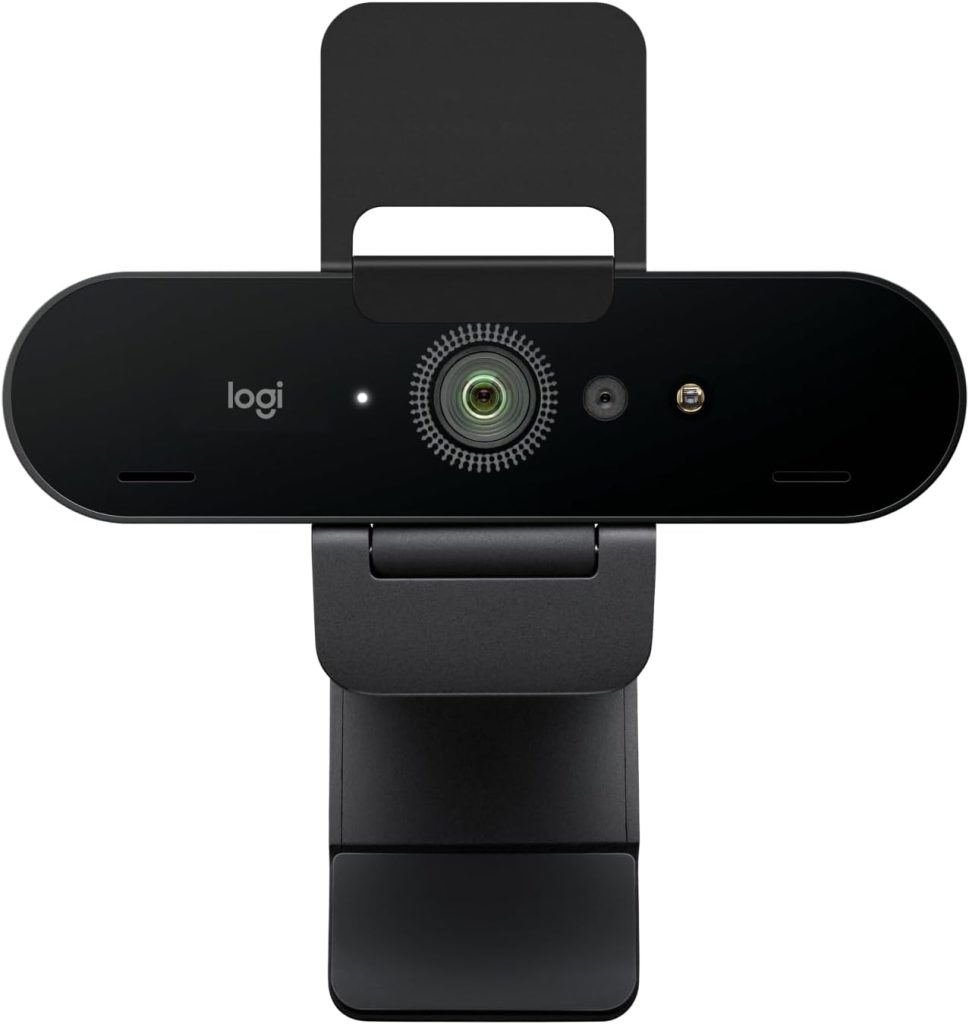
The Brio is Logitech’s flagship webcam, and it shows. True 4K capture, 5x digital zoom, HDR support, and one of the sharpest images you’ll get from a webcam at any price. It also supports Windows Hello facial recognition, which is a nice touch if you’re a Windows user who logs in frequently.
Now, the honest part: most of the 4K resolution is wasted on video calls. Zoom and Teams compress everything anyway. Where the Brio actually shines is in the sensor quality and the way it handles difficult lighting. The HDR mode is excellent. The image stays clean and detailed even when the light isn’t cooperating.
If you’re recording video content, doing client presentations, or just want the best possible image quality because your on-camera presence matters a lot to your work, the Brio justifies its price. If you just want to look decent on Zoom calls, it’s probably more than you need.
Pros:
- True 4K capture with outstanding image quality
- Excellent HDR for challenging lighting situations
- 5x digital zoom without much quality loss
- Windows Hello support
- Works great for video content creation, not just calls
Cons:
- Expensive for what most people actually need from a webcam
- 4K advantage is mostly irrelevant for standard video calling platforms
- Bulkier than other options
Best for: Freelancers who are also content creators, consultants whose on-camera presence directly affects client perception, or anyone who wants the best and doesn’t mind paying for it.
Price: Around $150 to $200
Which One Should You Get?
Under $75 with decent lighting? Get the Logitech C920x. It’s reliable, well-supported, and does exactly what you need.
Under $100 with mediocre lighting? Get the AnkerWork C310. Sharper 4K sensor and AI framing at nearly the same price as the C920x, with the added bonus of a built-in privacy shutter.
On calls all day in a mixed-light office? Go with the Logitech C922 Pro. The improved light correction is worth the extra $20 over the C920x if you’re on video constantly.
Working in a dim room or fighting backlighting? The Razer Kiyo Pro is built for this. The adaptive sensor actually helps when the lighting isn’t on your side.
Want the best image possible and don’t mind spending more? The Logitech Brio 4K is the answer. Just go in knowing you’re paying for image quality and versatility, not for anything video calls alone will show off.
Final Thoughts
A bad webcam is one of those things that quietly costs you more than you realize. Clients form impressions fast. If you look pixelated and dark on calls, it works against you no matter how good your work is. A $70 fix takes care of that.
My personal pick for most remote workers is the AnkerWork C310. It hits a sweet spot that not many people talk about: a sharp 4K sensor, AI framing that keeps you centered, smooth 60fps video, and a clean design, all for right around $100. If that’s unavailable or you want the name-brand comfort of Logitech, the C920x still gets the job done.
Whatever you pick, almost any of these will be a significant step up from your laptop’s built-in camera. Get one, clip it to your monitor, and stop thinking about it. Your time is better spent on your actual work.