Most freelancers pick one tool and never look back. A client sends a Zoom link, they download the app, and suddenly Zoom is their default forever. Or they’re deep in Google Workspace, so Meet feels like the obvious choice. Neither decision is wrong, but neither is particularly thought-through either.
I spent a long stretch running all my client calls through Zoom before I started testing Meet more seriously. What I found surprised me a little. Not because one tool is obviously superior in every way, but because which one actually makes sense for you depends on specifics that most comparison articles skip right over.
So here it is, plain: Google Meet is the better pick for most freelancers, especially solo operators who do client calls and don’t need advanced webinar features. It costs nothing, it removes friction for clients, and it works out of the box if you already use Gmail. Zoom is a stronger tool in some specific ways, but those extras mostly matter to people running bigger operations.
The rest of this article explains why.
Why this comparison actually matters for freelancers
When you’re a company, IT picks your video tool. Everyone uses it, IT maintains it, done.
Freelancers don’t have that. You’re choosing your own stack, paying out of your own pocket (or not), and managing the client experience yourself. That changes the calculus.
The free plan limits matter more to you than they do to a 50-person team. Your clients joining your calls without needing to create accounts matters. Whether you can record a discovery call for your own notes matters. You’re not evaluating these tools for a boardroom; you’re evaluating them for a Tuesday morning call with someone who hired you off Upwork.
Zoom: the reliable workhorse with a hard limit

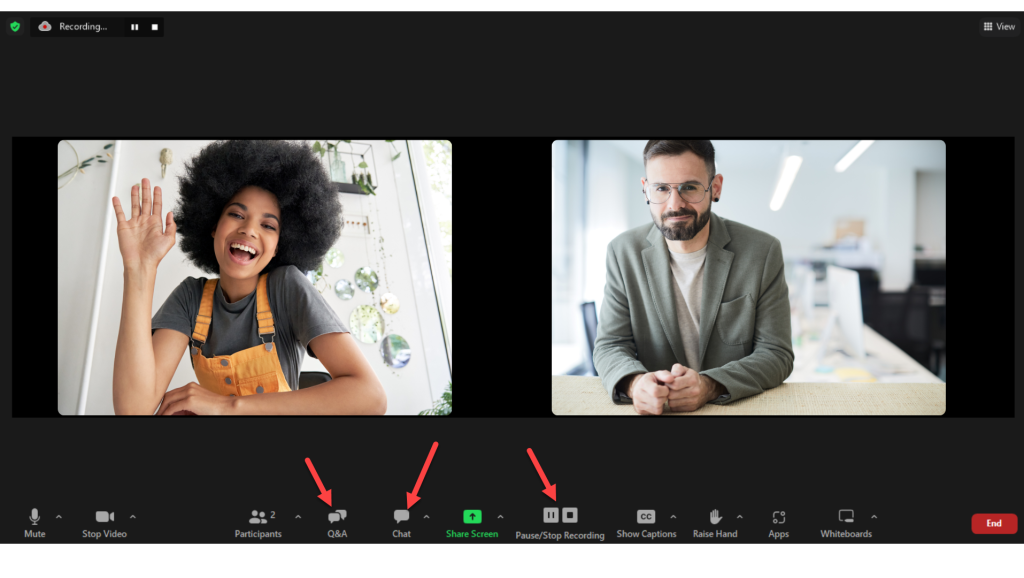
Zoom is the name people say when they mean “video call,” the way people used to say Xerox when they meant “copy.” That brand recognition is real, and it helps when you send clients a link. Most people know what Zoom is and roughly how it works.
The free Zoom plan gets you 40-minute meeting limits with three or more participants, up to 100 participants, and basic screen sharing. One-on-one calls are actually unlimited in duration on the free plan, which is useful if most of your client calls are just you and one other person. Meetings with your client and their team member, though? Clock starts ticking.
That 40-minute cap is legitimately annoying. It’s not just a soft suggestion; the call drops. You can rejoin immediately and keep going, but it’s disruptive and it signals to your client that you’re on the free tier. Some freelancers are fine with that, but plenty aren’t.
Zoom paid plans start at around $15.99/month (Pro plan, billed annually). That removes the time limit, adds 5GB of cloud recording storage, and gets you meeting summaries and other AI features depending on the plan. If you run workshops, discovery calls that often go long, or group client reviews, upgrading to Zoom Pro removes a real daily frustration.
Where Zoom genuinely shines is depth of features. Breakout rooms, webinar add-ons, polls, live transcription, detailed participant reports. If you run group trainings or sell digital courses with live sessions, Zoom’s feature set is hard to beat.
Where it falls short for a typical freelancer: the client install experience isn’t frictionless. First-time Zoom users sometimes hit a download prompt or browser permission issue, and that awkward 90 seconds at the start of a call while someone figures out their audio isn’t a great first impression. Zoom has improved its browser-based experience, but the native app is still the more reliable path.
Zoom is worth paying for if you regularly run calls with more than one client participant, frequently go over 40 minutes, or sell anything involving group live sessions. Check out Zoom Pro here.
Google Meet: quietly good, and free
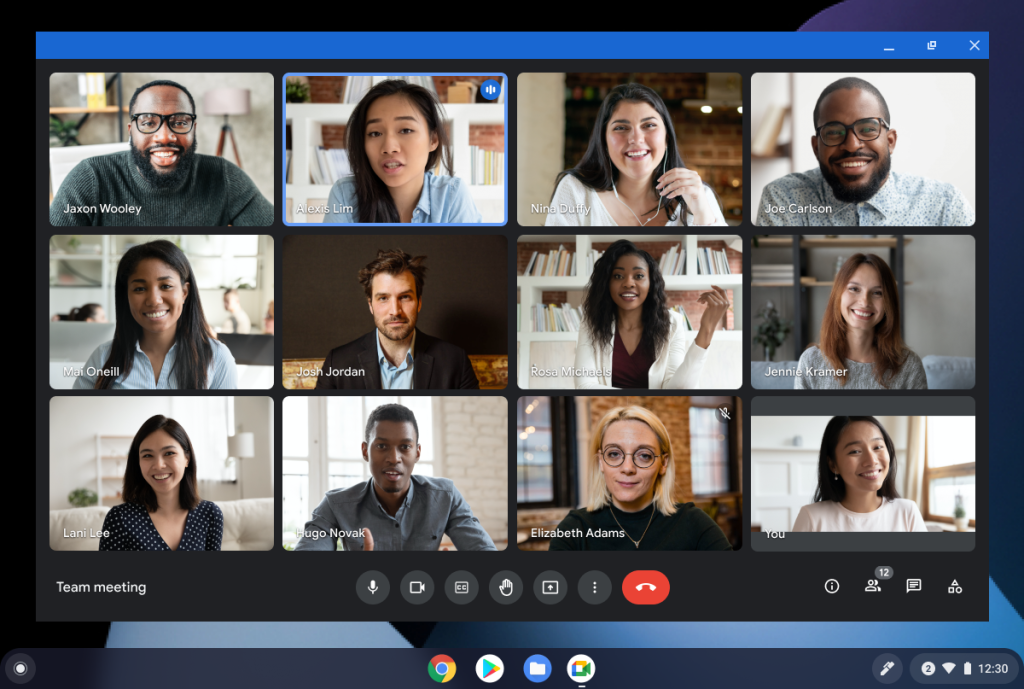
Google Meet doesn’t have Zoom’s brand momentum, but it’s been steadily improving for years and it’s now a genuinely solid tool. If you have a Google account, you can run calls with no time limit, up to 100 participants, and basic screen sharing. That’s it. No download required for most participants, no app to install.
That last part matters more than it sounds. When a client gets your Google Meet link, they click it, allow camera and mic access in their browser, and they’re in. No download prompt. No account required on their end. For clients who aren’t particularly tech-savvy, this removes a real barrier.
The free plan is remarkably generous. Personal Google accounts (free Gmail) get 60-minute meeting limits with up to 100 participants. Google Workspace accounts (paid, for business) remove that limit entirely and add recording, noise cancellation, breakout rooms, and attendance tracking. If you’re already paying for Google Workspace as part of your freelance setup, you’re getting a full-featured Meet at no additional cost.
Call quality on Meet is good. Not meaningfully different from Zoom for most calls. Both tools perform well on a decent connection and both degrade similarly on a bad one.
Screen sharing works well. The one quirk is that sharing a specific browser tab (rather than your whole screen) is often smoother in Meet than in Zoom, which matters if you’re walking a client through a web-based project.
Recording is where Meet shows a clear divide. On a free Google account, you can’t record. Recording requires a paid Google Workspace plan. If you need to record client calls and don’t have Workspace, that’s a real limitation.
Integrations are native for anything Google: Calendar, Drive, Docs, Gmail. If your workflow lives in Google’s ecosystem, Meet just fits. Scheduling a call auto-generates a Meet link. Notes from the call can go straight to Drive. It’s not magic, just sensible plumbing.
Google Meet is the right call for most freelancers doing regular client calls who don’t need recordings or advanced features, especially if you’re already in Google’s ecosystem.
Head-to-head comparison
| Feature | Zoom | Google Meet |
|---|---|---|
| Free plan time limit | 40 min (3+ participants), unlimited 1:1 | 60 min (free account), unlimited on Workspace |
| Free plan participant limit | 100 | 100 |
| Client install required | Often (browser option exists but less reliable) | No, browser works well |
| Recording on free plan | No | No |
| Recording on paid plan | Yes (Zoom Pro, ~$15.99/mo) | Yes (Google Workspace, from ~$6/user/mo) |
| Screen sharing | Yes, solid | Yes, tab-sharing especially smooth |
| Call quality | Very good | Very good |
| Breakout rooms | Yes (paid) | Yes (Workspace) |
| Calendar integration | Works with Google/Outlook via add-on | Native Google Calendar |
| Noise cancellation | Yes (paid) | Yes (Workspace) |
| Background blur/replacement | Yes (most plans) | Yes (most plans) |
| AI meeting summaries | Yes (paid) | Yes (Workspace) |
| Webinar features | Yes (add-on) | Limited |
| Ease for first-time clients | Moderate | High |
The clear winner: Google Meet
For solo freelancers running regular client calls, Google Meet wins. Here’s the actual reason: it removes friction at every step. No time limit anxiety, no client download issues, no per-seat cost unless you need recordings. If you’re doing discovery calls, project check-ins, feedback sessions, and general client communication, Meet handles all of it without costing you anything.
The 60-minute limit on free personal accounts is enough for most calls. If it’s not, a Google Workspace subscription costs less per month than Zoom Pro and gets you recording, longer call durations, and the rest of the productivity suite.
The honest downside of Meet: if your clients are outside Google’s ecosystem or expect Zoom, there’s sometimes a mild learning curve for them. Not a big deal, but worth noting. And if you run webinars, sell live training, or run sessions with 20+ participants regularly, Zoom’s feature depth is genuinely better and worth the cost. Zoom Pro is solid for that use case.
But for the freelancer running 3-5 client calls a week with one or two people at a time? Meet is the practical, no-cost answer that gets out of your way.
What to do now
If you don’t have a preferred tool yet, start with Google Meet. Open Gmail, click the Meet icon, and try a call. See how it feels. There’s nothing to set up.
If you’re on Zoom’s free plan and keep running into the 40-minute limit, either upgrade to Zoom Pro or switch to Meet and stop thinking about it.
If you run live trainings or workshops, Zoom Pro is probably the right investment. The feature set for group sessions is more mature, and the participant experience is what people expect for that format.
Pick one, use it consistently, and put your energy back into actual client work.
Affiliate disclosure: This article contains affiliate links. If you click through and purchase, WorkRemote HQ may earn a commission at no extra cost to you. All opinions are based on honest research and assessment.